Explore new iPad tips for productivity with features like Reminders, Live Translation, and Image Playground.
Customize the Liquid Glass UI and icon styles to enhance your iPad experience.
Optimize your lock screen with Scene Detection, Widgets, and color settings.
Share Accessibility Settings temporarily between iPads for convenience without multiple user profiles.
Always back up your iPad before major updates to avoid data loss and ensure app compatibility.
Welcome back—because we are picking up the threads from the last iPad tips post I dropped.
If you would like to look back at some of the new features Apple brought on to iPadOS 26, I covered them in my What’s New & Notable post.
This second (and hopefully last) segment should fully wrap things up on the topic. And feel free to use the Skip Ahead tool to get to the nitty-gritty.
Alright then, let’s get into the other productivity and efficiency tips for the iPad, with some iPad insights sprinkled throughout.
Like I said before, it definitely sucks that the iPad A11 doesn’t ship with Apple Intelligence out of the box.
But for folks with literally any of the other models, you will be treated to the service at setup.
These iPad tips push Apple Intelligence past chat assistance or simple text correction, to more efficient workflows that help take its potential to the next level.
Reminders
Reminders now uses AI to sort through text data (notes, email, or Safari) to return helpful reminder suggestions.
Pro Tip: Get ahead with this iPad tip by selecting text that you would like to get reminded about. Tap Share, then tap Reminders.
Live Translation
Promotes collaboration across regional and language barriers. Turn it on when you get a message in a different language (works on Messages, FaceTime, and Phone apps).
Image Playground
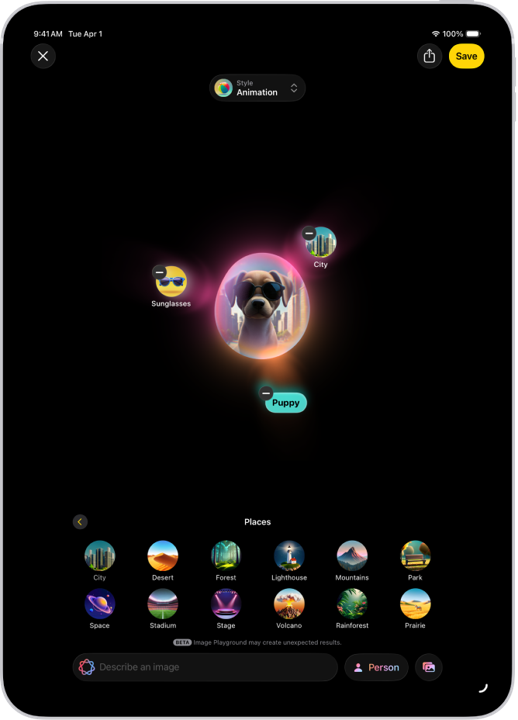
This iPad tip turns the app from just a playground to a productivity tool than can be used to nail down visuals in meetings, brainstorming sessions, and focus groups.
You have access to additional ChatGPT Styles and can review variations of your idea before making a decision (don’t forget to tap Save)—great for creative collaboration.
Some of us aren’t fans of the new Liquid Glass design. Honestly, I was just glad to see Apple making a significant UI change.
Whether you are in favour or opposed, it’s fresh, it’s functional, and it’s here to stay, so just optimize it!
Plus, If you’re out to give your UI a well-deserved refresh, this is one of those iPad tips that makes a visual difference.
Liquid Glass Settings
The Liquid Glass UI displays differently depending on how it’s adjusted. Unfortunately, the settings aren’t all under a single “Liquid Glass” heading.
As a result, you will have to do some deep-diving to fine tune its appearance to your preference.
Pro Tip: Use these parameters in the Settings to change how Liquid Glass appears.
Display & Brightness > Liquid Glass. Tap Clear or Tinted.
Accessibility > Motion > Toggle Reduce Motion.
Accessibility > Display & Text Size > Toggle Show Borders.
Accessibility > Display & Text Size > Toggle Reduce Transparency.
They do exactly what they sound like. Aside from aesthetics, they can also help improve legibility and manage eye strain.
Icon Styles
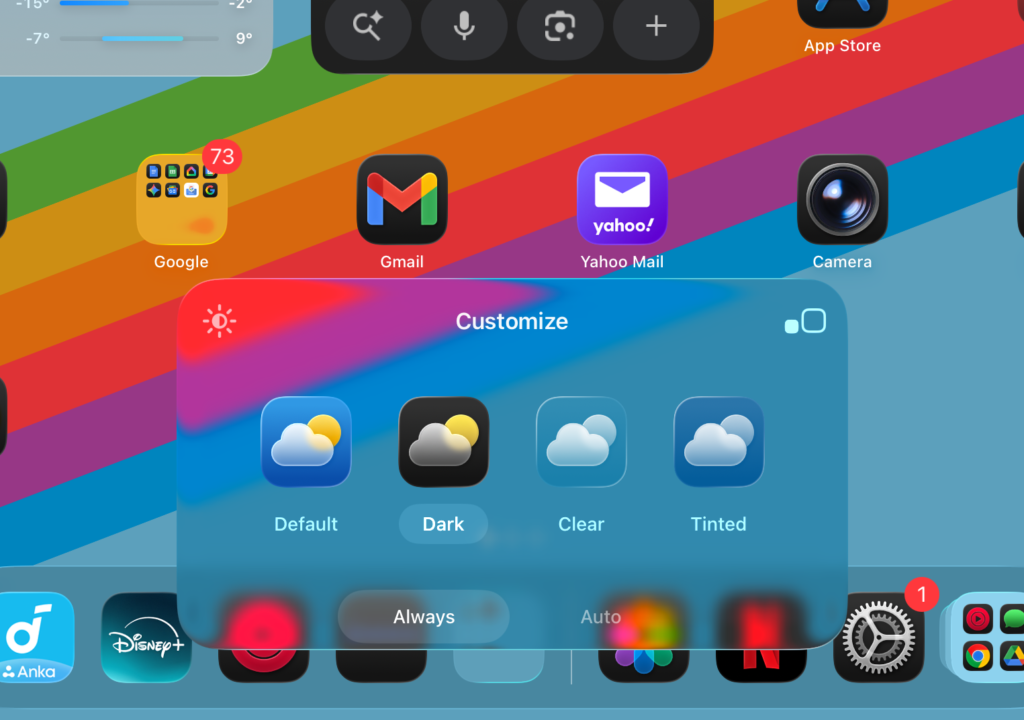
iPad icons got a complete facelift on iPadOS 26. In addition to icon sizing, you can now customize their appearance to be Dark, Clear, Tinted or Default.
They can be personalized even further;
Dark can be set to Always or Auto (following your Sunrise to Sunset display settings).
Clear appearance can be set to Light, Dark or Auto.
Tinted, on the other hand comes with a multi-level personalization.
Colour Picker
Colour Spectrum
Color Slider
Opacity Slider
This level of personalization on the home screen is something we’ve not seen from Apple in a very long time. I’ll be making the most of it.
Source: Screenshot by Chiji Davidson / Apple iPadOS 26.3
Lock Screen
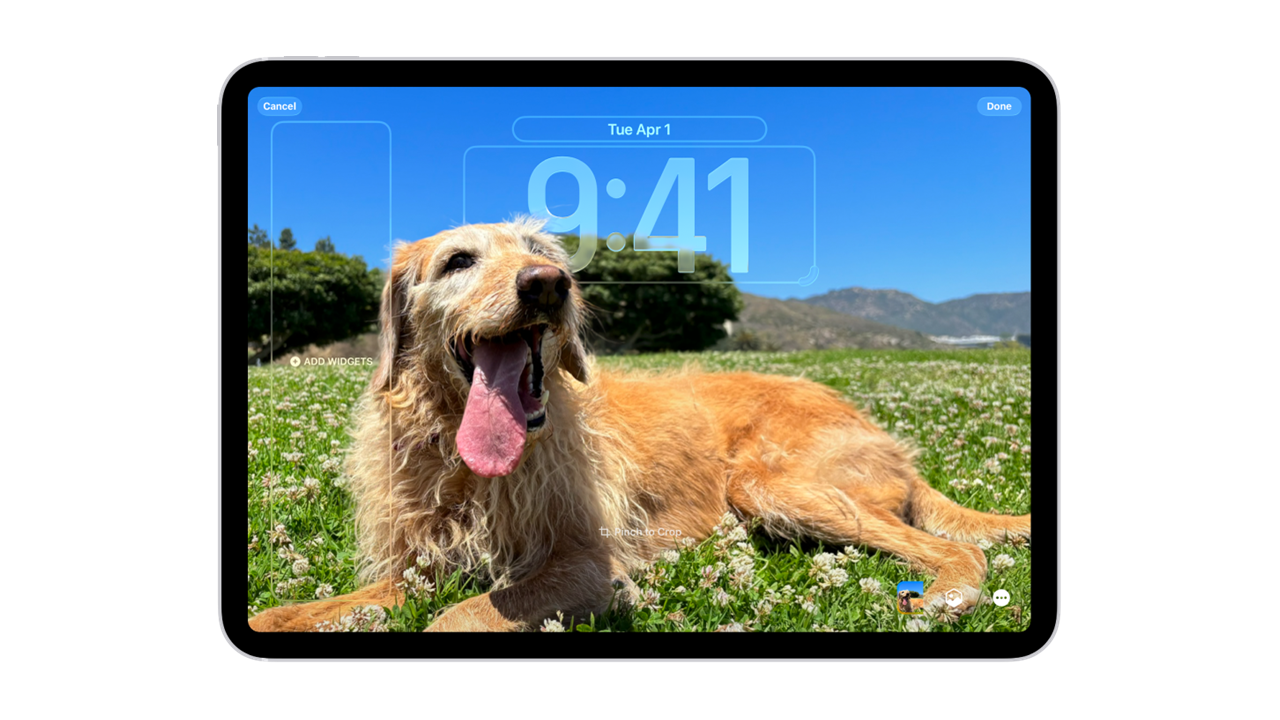
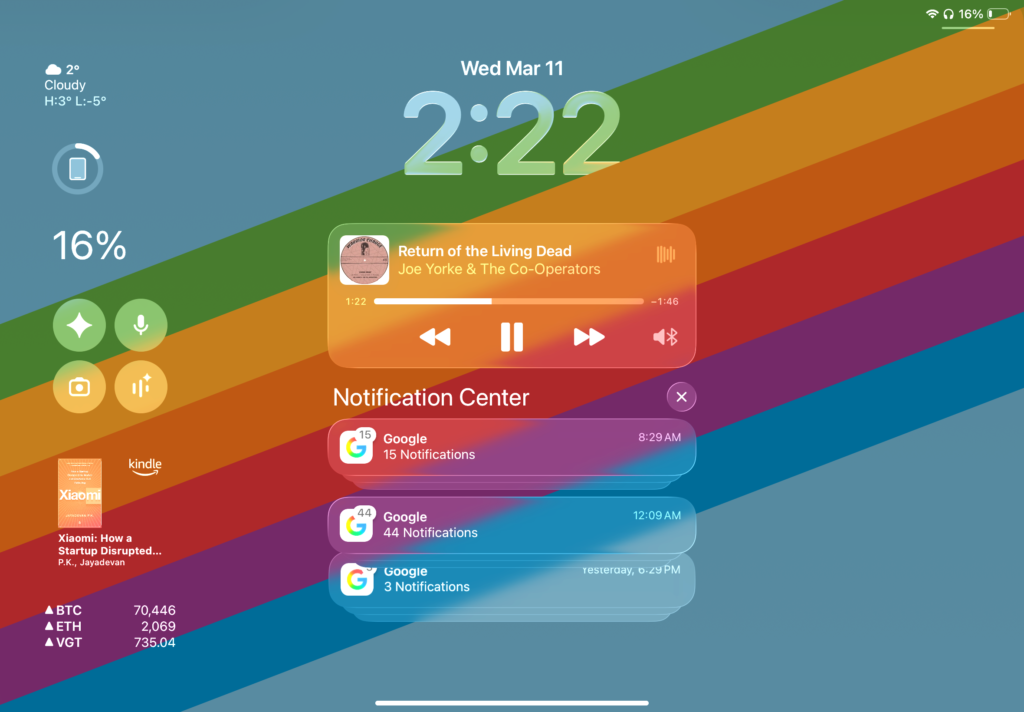
This is one of the iPad tips that helps you do more with your lock screen. After all, it’s the first thing you see when you wake your device.
When you have a wallpaper that has a clear subject and background, Scene Detection can apply a 3D effect on your lock screen—basically allowing the time to adapt to the wallpaper subject and keep it in the foreground.
Gladly, this feature is supported on the iPad A16, so you don’t have to pay a premium if you really want it.
To add more personal touches, try adding Widgets, applying Colour Filters, and Light or Dark Appearances (if the background supports it).
Source: Screenshot by Chiji Davidson / Apple iPadOS 26.3
Accessibility + Shared Device Hacks
Unfortunately, iPadOS 26 doesn’t have a separate User Profile feature similar to Android’s Multiple Users setting.
This means that there are no separate device logins since the iPad is technically built for a single user. But with this iPad tip, you can share personal settings with a different iPad.
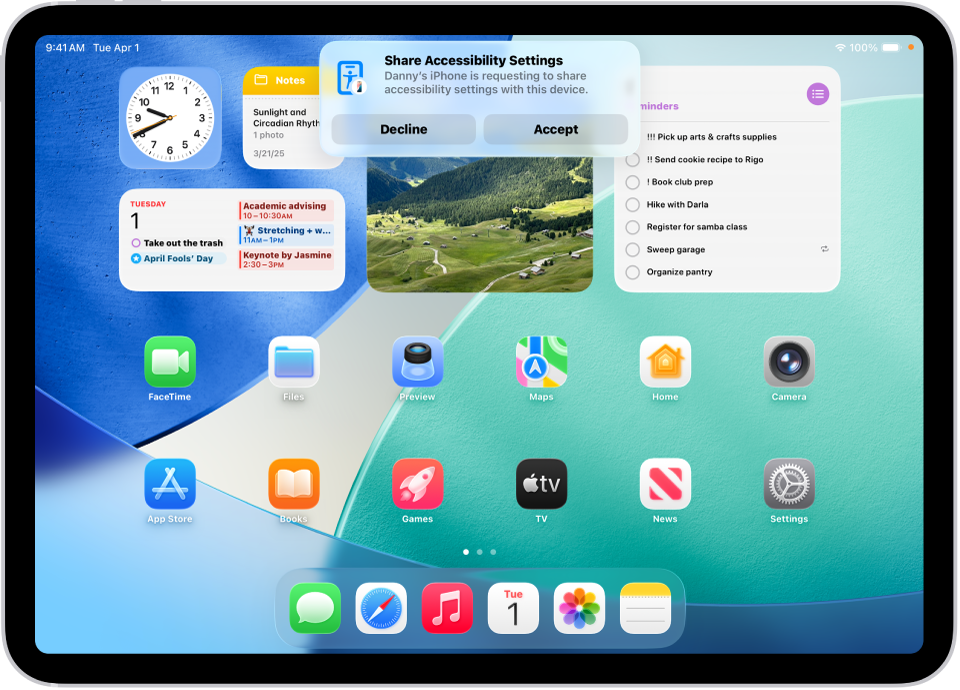
For folks with device-specific needs like VoiceOver or Live Speech, you can temporary access them on another iPad using the Share Accessibility Settings.
This iPad tip is helpful when you need to use a different iPad in a pinch and avoid resetting preferences, but it can barely replace the need to access an entirely separate user profile like in a Kid-Adult sharing scenario.
Source: Apple iPad User Guide / support.apple.com
The “Safety First” iPad Tip
I’m currently on iPadOS 26.3 and being a mid-cycle update, I usually won’t back up my device before installing.
The rule of thumb for data safety is to back up (iCloud or local) before major updates, like going from iPadOS 18 to 26.
Prior to updating, always confirm OS compatibility with your administrator for specific apps, especially if you rely on them for work or school.
Final Thoughts
Okay great, I will be able to wrap it up in this post after all. Thanks for sticking around and I hope you were able to benefit from one or more of the iPad tips in this series.
Apple clearly sold the iPad as a creation and productivity powerhouse, and iPadOS 26 helped them achieve that goal.
It’s a good time to be new to iPad, whether you need it to edit files, multitask, sketch, or for everyday entertainment, iPadOS 26 likely has a tool for you, especially if you have a mini, air or a pro model.
Overall, with these major OS updates, give yourself time to mess around in the new OS. Explore settings, toggle features, and go nuts! You never know what gems await on the inside.
That’s it folks! Looking for something specific? Leave me a comment, or just say hi—that works too.
Chiji is an independent contributor with a knack for capturing content around consumer tech products and technology trends. At DesktopCoach you'll find him covering features on smartphones, tablets, wearables, and accessories.