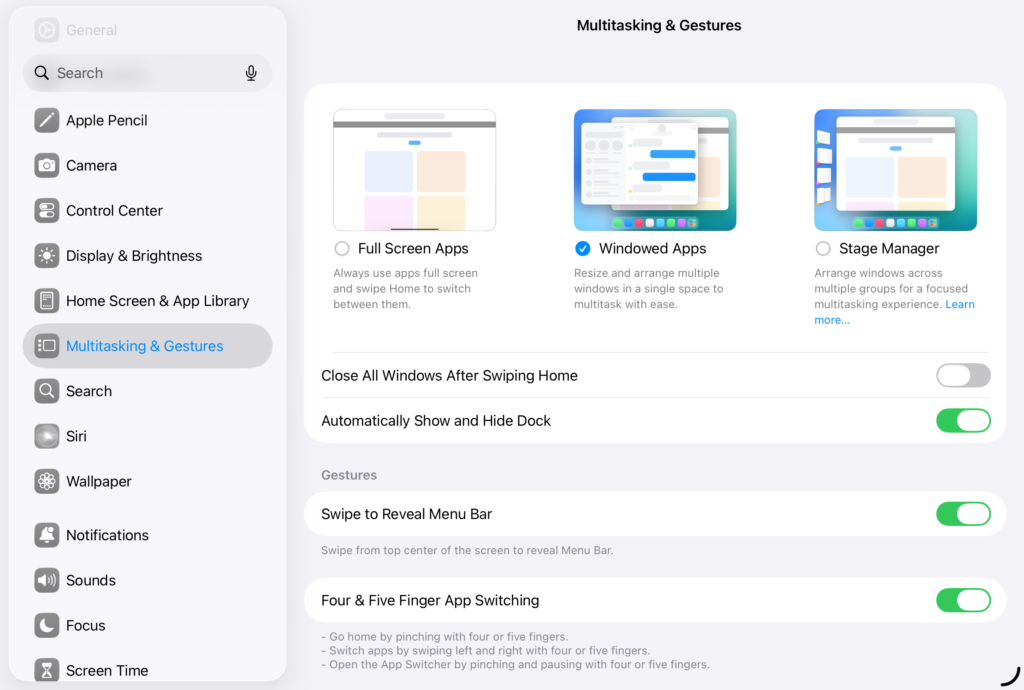
To get started with this iPadOS 26 tip, you’ll want to make sure your Multitasking is set to Windowed Apps.
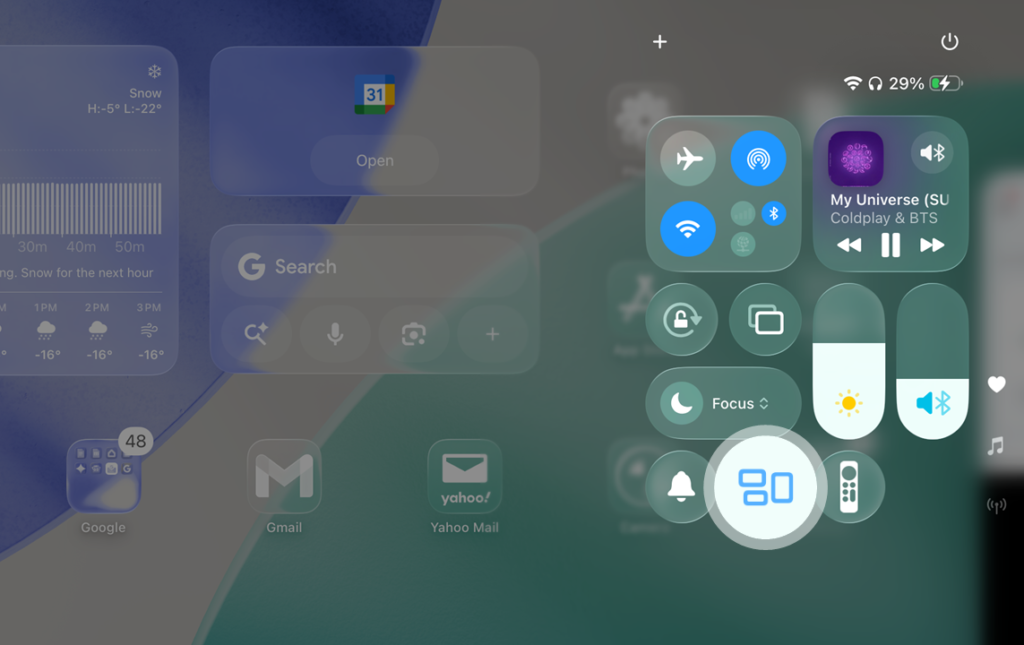
Windowed Apps: First, open the Control Centre (swipe down from the top-right corner of your screen). Next, tap the Windowed Apps button.
Windowed Apps via Control Center (Screenshot). Chiji Davidson
With Multitasking set to windowed apps, you can try a few things to help boost productivity.
Open two or more apps, then drag the corners of each window to resize. Experiment with Landscape/Portrait orientation, and thirds/quarters/halves of your screen to create a workflow you like (not all apps are optimized).
For two apps side by side, you can drag the middle bar to adjust the size of the app windows.
Use the Menu Bar (swipe down from the top of your screen) to access app commands quickly.
Use Window Controls to minimize, maximize or close windows in multi-window view.
It will require some getting used to, but you’ll gain more flexibility over time. Learning these multitasking iPadOS 26 tips is a process that gets easier with practice.
Windowed Apps via Multitasking Settings (Screenshot). Chiji Davidson
Supercharge Your Workflow with a Robust Files App
For the next iPadOS 26 tip, take these steps to make better use of your Dock and Files App, and improve your workflow.
Easily Identify Folders:
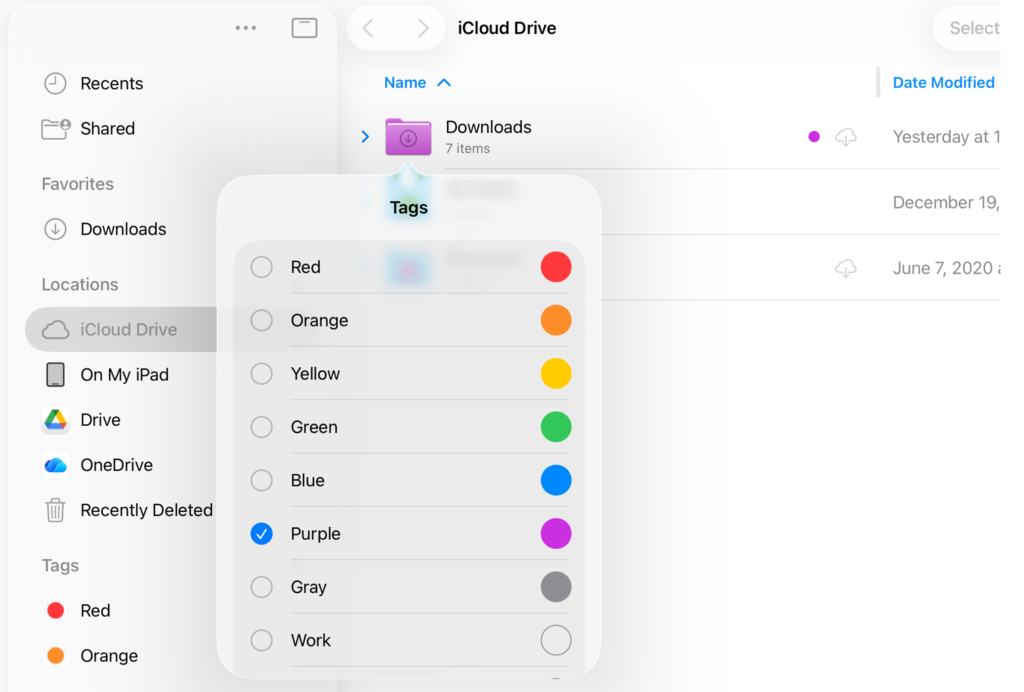
Make your folders easier to identify by changing their colors. Adding an icon on my iPad A16 was not successful. (Tap and Hold the folder, and then tap Tags. Select a Tag).
Folder Tags on the Files App (Screenshot). Chiji Davidson
Quickly Access Folders:
Move a folder to the Dock for quick assess—this practical iPadOS 26 tip particularly makes for faster file management. (Tap and Hold the folder, and then Add to Dock).
Get quick access to folder content by collapsing and expanding folders without opening them. (Tap the Right Arrow icon to the left of the folder—only in List view).
Preferred Folder View:
Personalize folder appearance by changing your view on the Files App—this iPadOS 26 tip helps you adapt better to your workspace.
Icons, List, and Columns views are available. (Tap the View icon in the top-right corner).
Personalize your Sidebar:
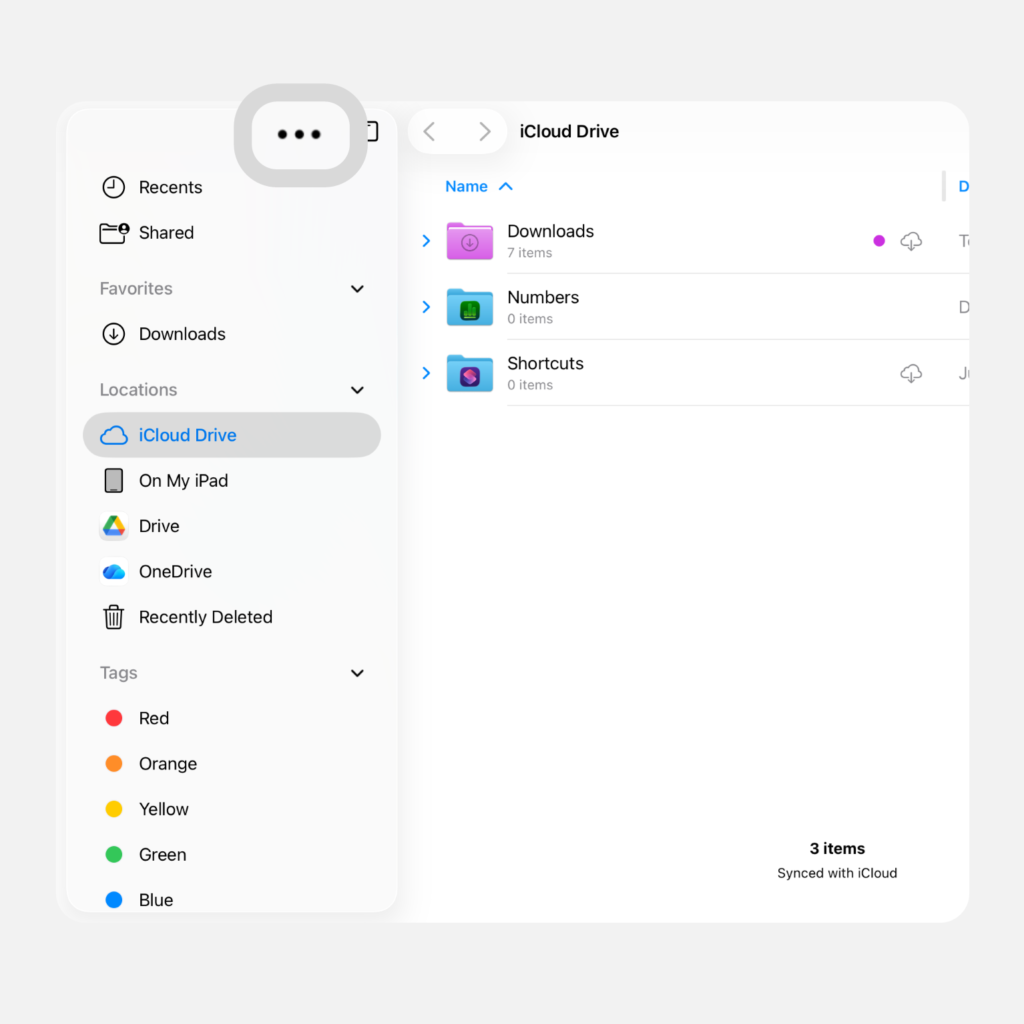
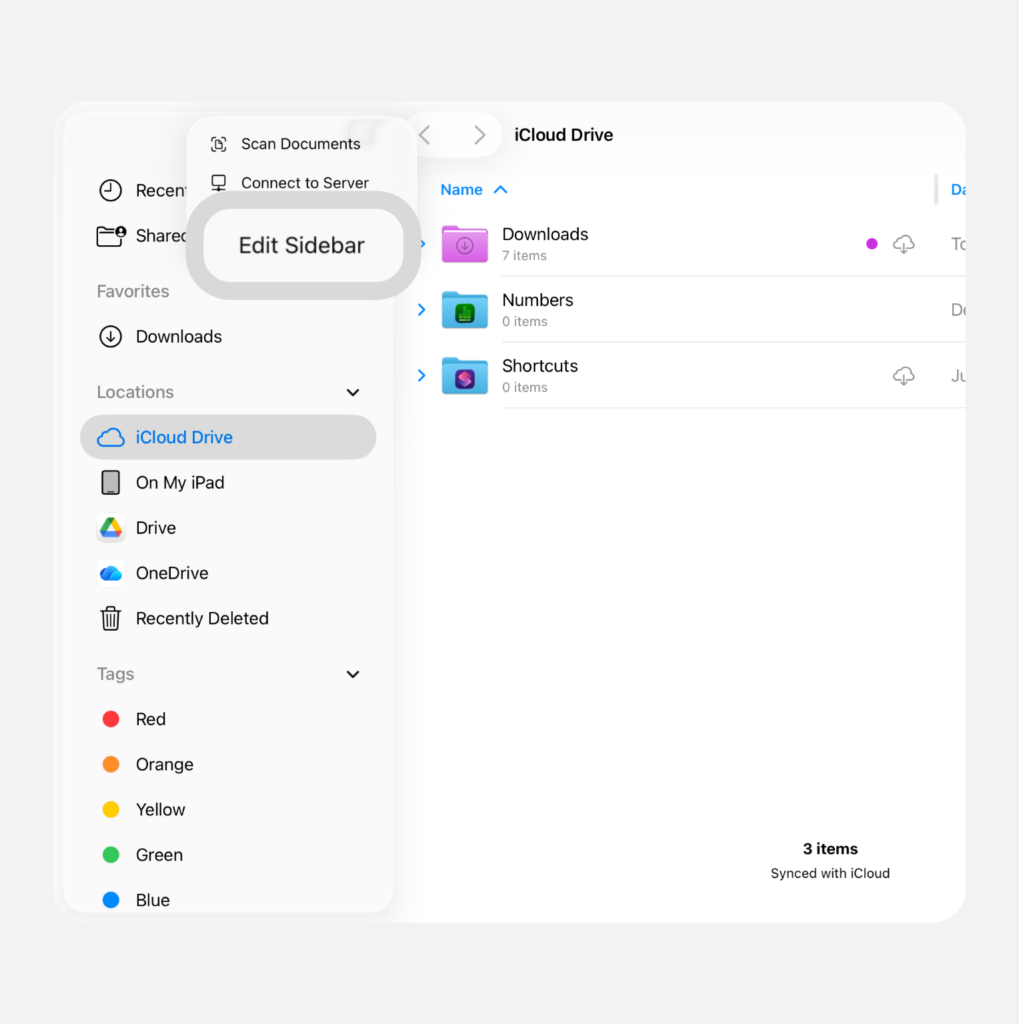
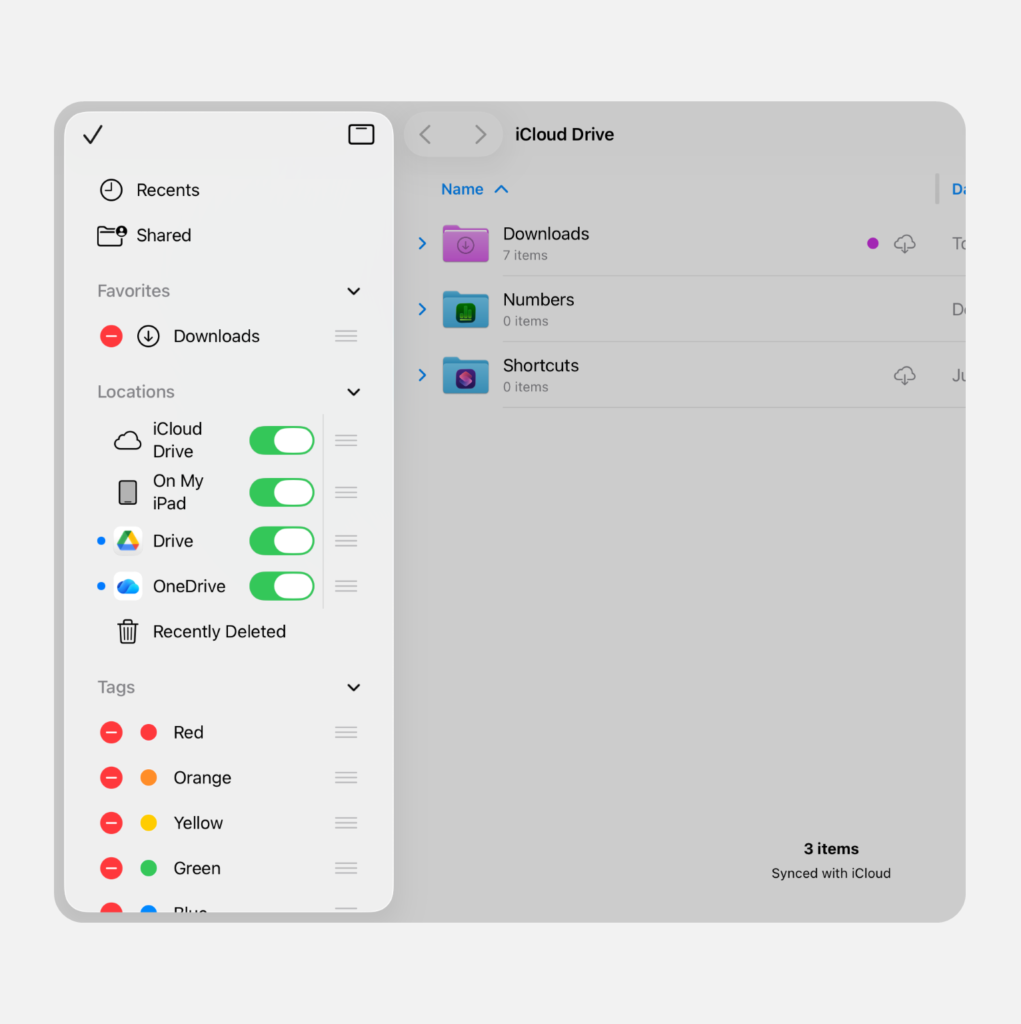
Toggle storage locations on or off. Rearrange or delete tags. Rearrange or delete favorites. (Tap the Three-dots icon at the top of the Sidebar. Tap the Sidebar icon to hide the Sidebar).
Steps to edit your Sidebar (Screenshots). Chiji Davidson
View Files Quickly:
Use the Quick Look feature to view a file without opening its default app—this iPadOS 26 tip lets you zip through file previews. (Tap and Hold the file. Tap Quick Look).
Use the Get Info feature to change a file’s default app, just like you would on a Mac. (Tap and Hold the file. Tap Get Info. Change the Always Open With option).
Streamline Document Editing with the Preview App
Whether you’re marking up specs or just signing contracts, these iPadOS 26 tips will get you properly set up. And eliminate dependency on paid third-party PDF apps.
Digitize Documents Quickly (Scan & Save)
Use the built-in Scan Documents feature is to capture document pages without a scanner app,
You can save the digital formats as fully searchable PDFs. (Open the Preview App. Tap Scan Documents. Set your document within the View Finder—the app handles perspective correction and edge detection automatically).
Pro Tip: Before saving, use the built-in filters to adjust colors or rotate pages.
Lock It Down (Password Protection)
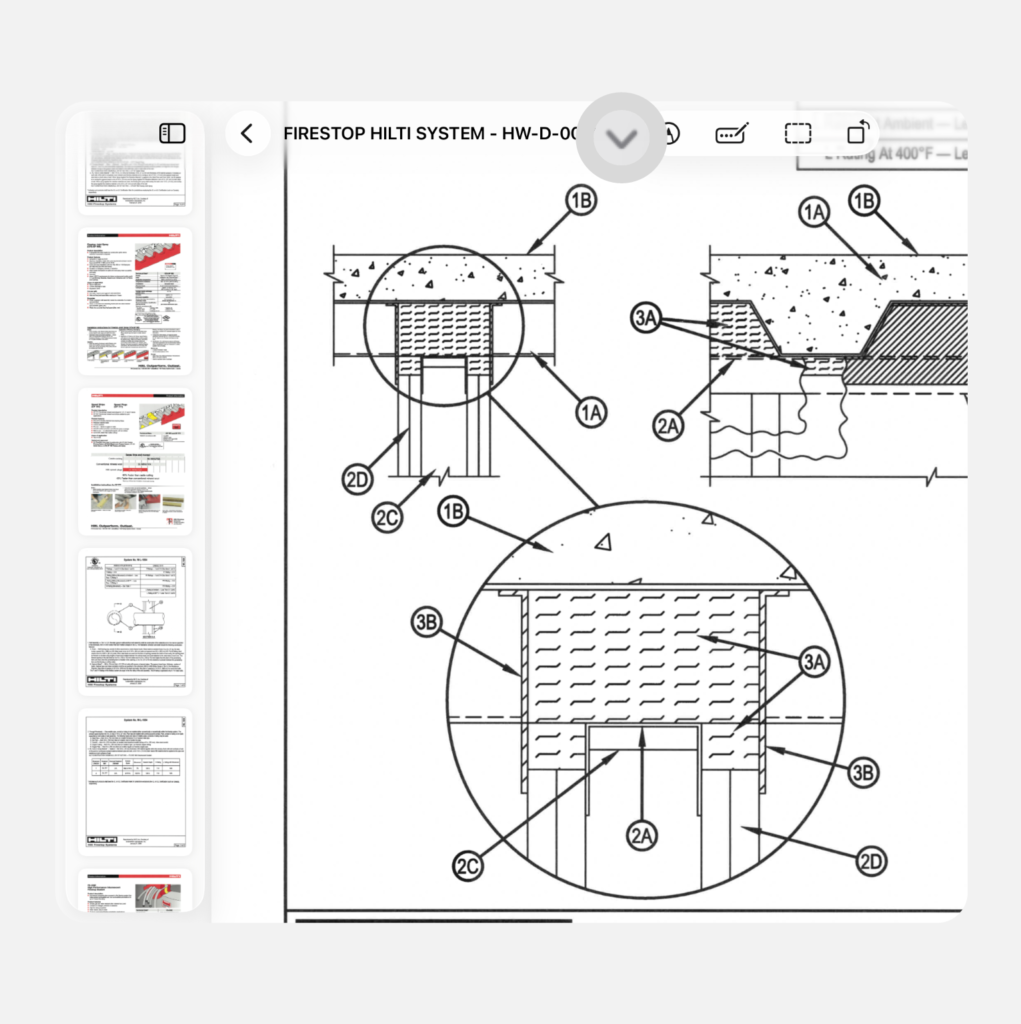
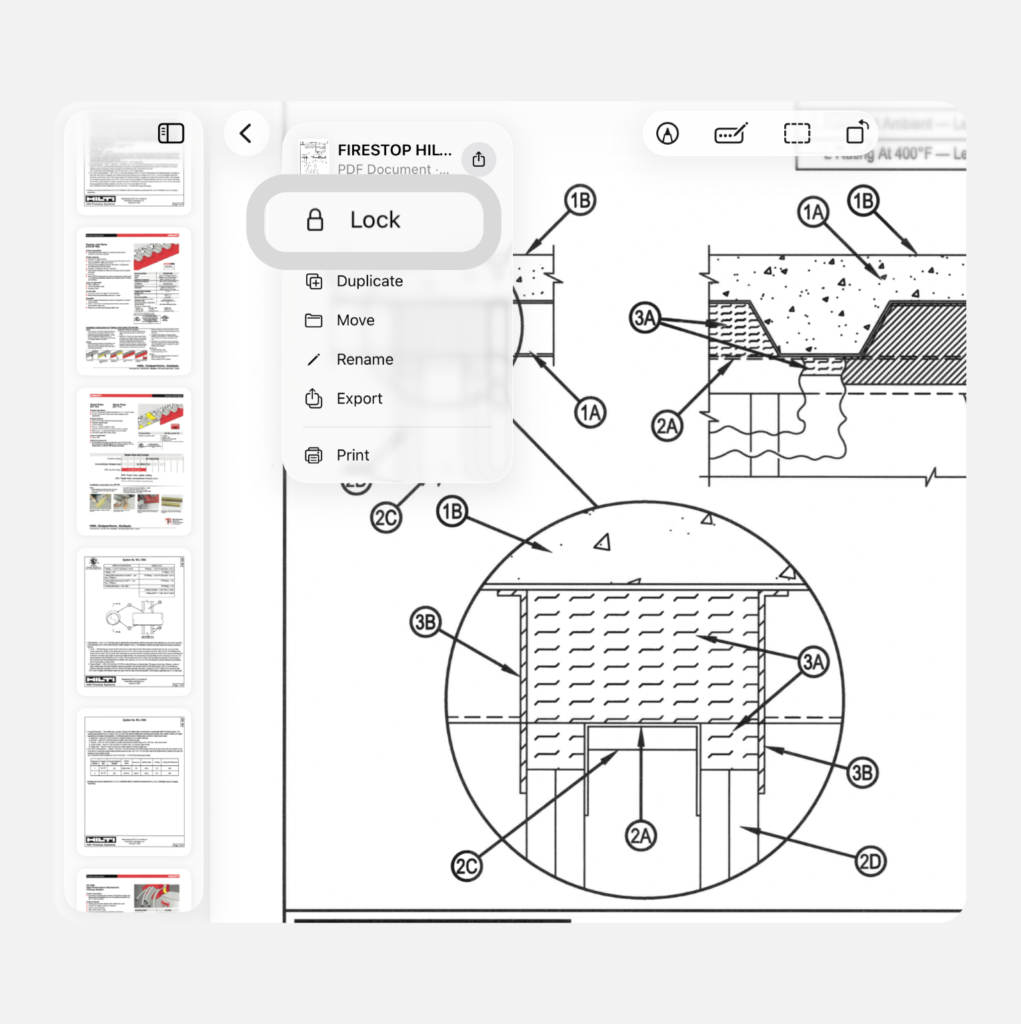
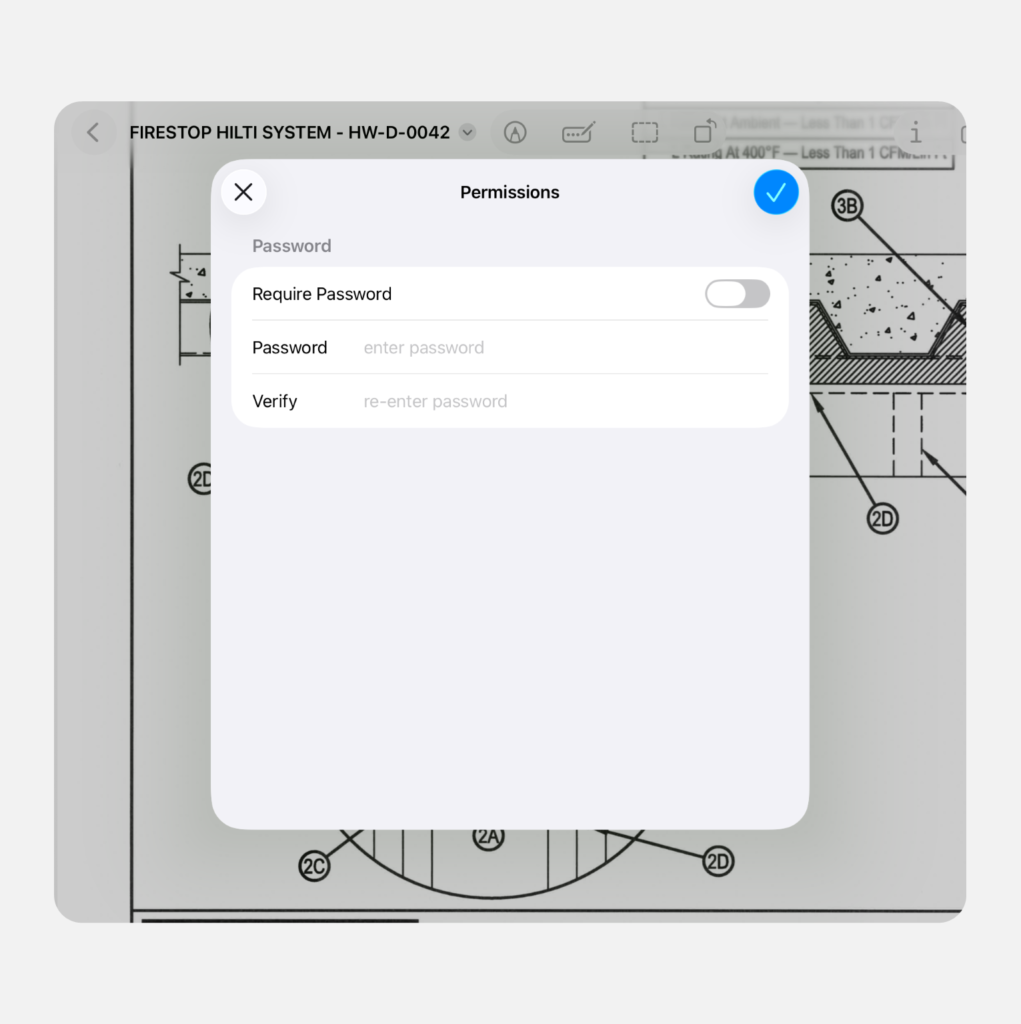
This iPadOS 26 tip focuses on document protection and highlights how to safeguard sensitive data without a middleman. (Open a PDF. Tap the Dropdown Arrow next to your filename. Then Lock).
This native file encryption is perfect for protecting invoices, NDAs, or other private documents.
Steps to Lock your PDF (Screenshots). Chiji Davidson
Background Removal
This is one of the cooler iPadOS 26 tips for quick mock-ups or slide decks. You can isolate a photo’s subject by removing the background.
Although, It’s a feature that has been available on many mobile devices but it’s a nice-to-have within the PDF app. (Tap the Three-dots icon at the top of the screen, then tap Remove Background).
Seamless Form Filling & Signatures
At this point, we are way past printing out forms just to fill and then re-digitize them.
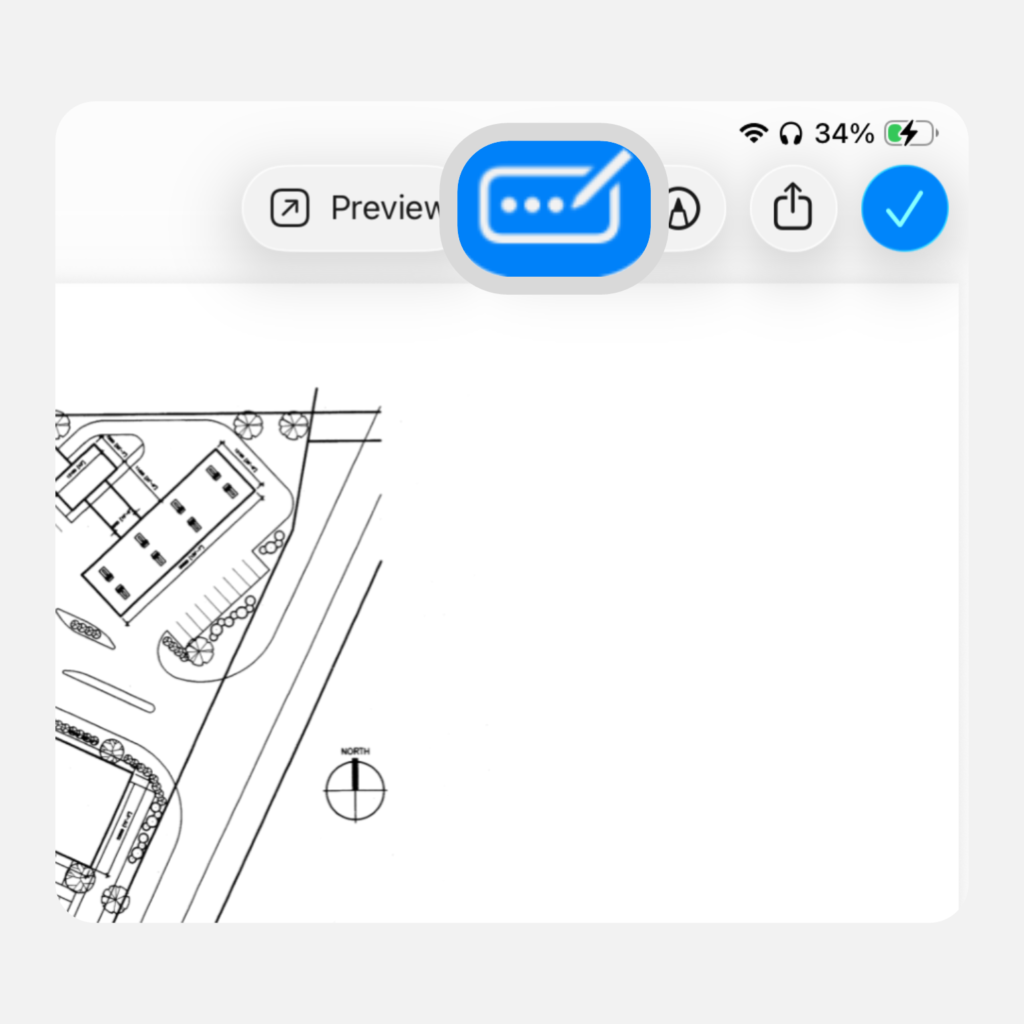
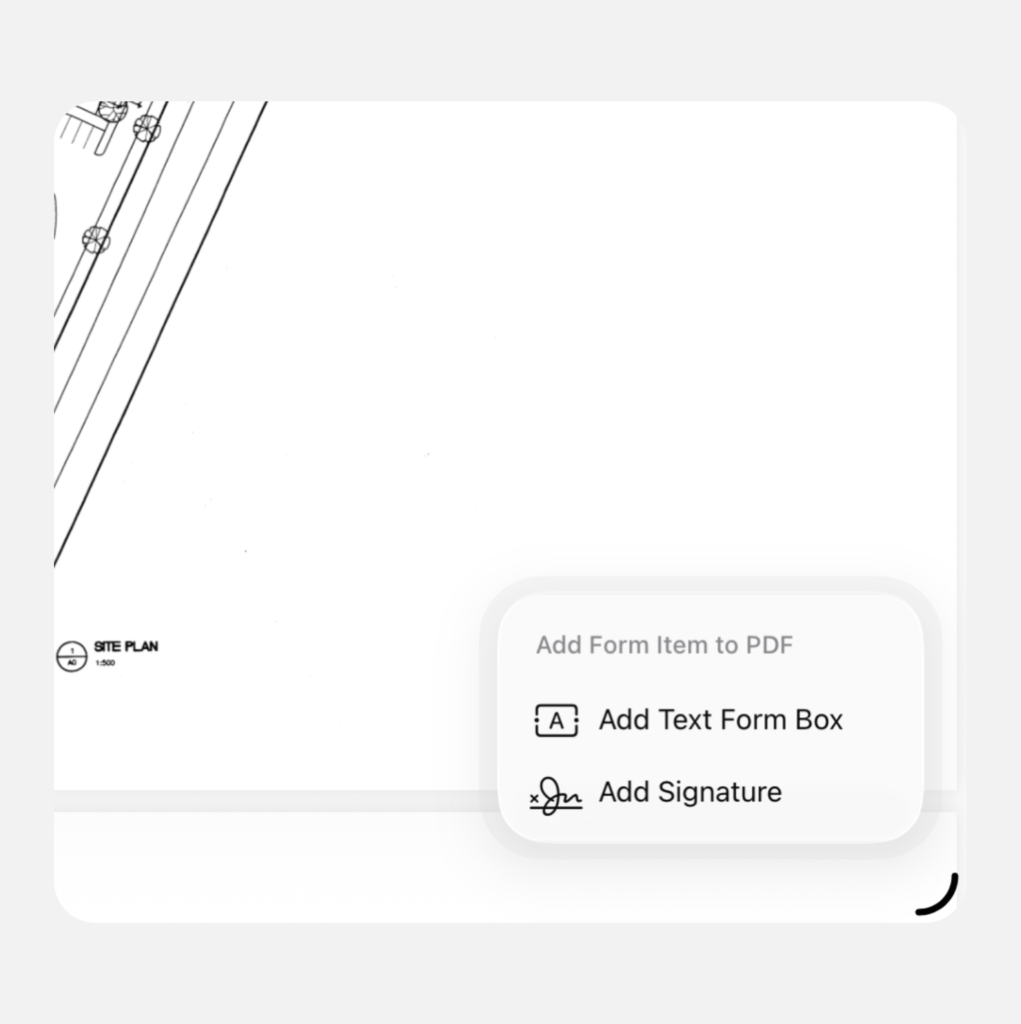
But the Insert Form tool in this iPadOS 26 tip provides access to iPad suggestions right from your keyboard. (Tap the Pencil-three-dots icon. Then select a field. If there are no fields, tap the Plus icon to insert a text box or signature).
Insert Form: The PDF does not have to be set up for text and signatures to fill or sign it. You can insert a text box and signature using the Insert Form tool. You can also sign with your fingers or Apple Pencil.
Insert Form Button and Menu (Screenshots). Chiji Davidson
Standard Markup: Highlight, Underline, and Strikethrough
Nothing out of the ordinary here but essential for reviewing documents in say, a peer or team review scenario.
Hiding the Underline and Strikethrough actions within the Highlight action is rather unintuitive.
With Highlight having an entirely different meaning, it would have been more efficient to gain access to the two options from the initial Tap and Hold action.
How it works:
Tap and Hold the text you want to markup.
Select Highlight.
Select one of the colors (if you intend to “highlight”).
Otherwise, select Underline or Strikethrough from the available options.
Early Takeaways
Halfway down this post, I started to realize how long the read time would be if I covered all the content I gathered.
So, to avoid fatigue (or straight-up boredom), I’ve cut it short and appended “Part 1” to this title. I will cover the rest in another post.
Alright then—the takeaways. Well, let’s recap part one.
Multitasking: Embrace Windowed Apps for enhanced multitasking capabilities and a Mac-like feel.
File Management: Use the new features to turn your Files app and Dock into command centers.
The Preview Powerhouse: The Preview app can be your primary editor—its new OCR, editing, and encryption tools are game-changers.
The iPad has always been a great device, but with these updates, it’s finally becoming a good workstation. Stick around for more tips in Part Two.
Have questions or comments on these features? Let me know!
Chiji is an independent contributor with a knack for capturing content around consumer tech products and technology trends. At DesktopCoach you'll find him covering features on smartphones, tablets, wearables, and accessories.