
Overview (Generated by Yoast)
- iPadOS 26 features a new design called Liquid Glass, enhancing the UI with a glass-like appearance and offering customization options.
- The update introduced improved multitasking capabilities, allowing users to manage multiple apps, mirroring a Mac-like experience.
- New apps like Preview, Journal, and a Phone app enhance productivity, while existing apps receive significant upgrades.
- iPadOS 26 includes advanced communication features such as Message Polls, Contact Posters, and enhanced background customization.
- Despite its strengths, iPadOS 26 omits Apple Intelligence for non-Pro models, limiting users’ access to AI functionalities.
You’ve likely landed here because you’ve installed iPadOS 26 or you are about to.
In addition, you are probably aware of the inconsequent leap from iPadOS 18 and wondering—what’s up with that?
Well, according to Bloomberg, the goal was to achieve consistency across their entire lineup.
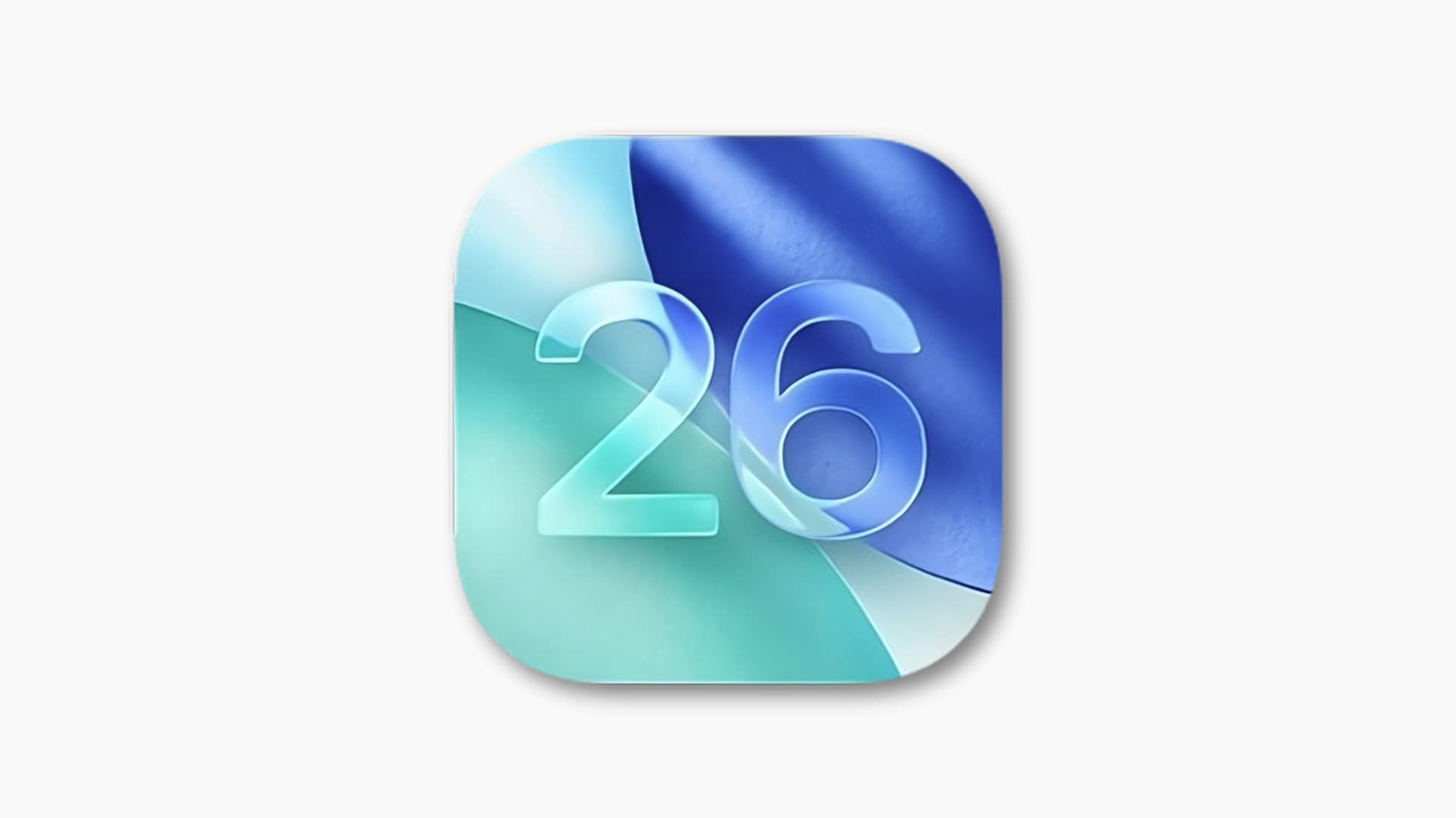
And in Apple’s defense, iPadOS 26 is now a name that’s instantly recognizable as an innovation made for the year 2026.
However, nomenclature is not the only property that has taken a leap in iPadOS. And that’s precisely what this piece will cover.
We will identify new standout features here, and then check out some tips and tricks in a subsequent post.
Skip Ahead

Release and Options
iPadOS 26 was announced on June 9, 2025 at WWDC (Apple’s annual developers’ conference).
It was released on September 15, 2025, with “Liquid Glass” as its most anticipated feature.
Mainly because the new design was a departure from Apple’s consistent and simplistic interface.
But it was also a major shift, to be implemented across multiple operating systems, not just on iPadOS 26.
Let’s explore Liquid Glass, alongside other standout features.
Liquid Glass
Liquid Glass is a complete UI material overhaul. The icons, lock screen, widgets, dock, and control center all get a new glazed appearance.
Apple’s new “true glow-up” look is glass-like, with transparent and translucent properties—a substantial deviation from Apple’s previously flat application.


Beautiful, expressive and instantly familiar, the stunning new design helps you flow through work and play.”
– apple.com
As of iPadOS 26.1, the UI feels more glass-like than liquid. Animations are smooth but lack liquids’ wave or ripple-like flow.
Apple had lofty goals for Liquid Glass. The idea isn’t original, but the implementation was bold and attractive on screen.
Recent updates however, have embedded controls that give users options to reduce the UI‘s transparency.

The new controls (rolled out across the entire OS 26 lineup) were triggered by poor screen legibility in real-time.
We’re expecting iPadOS 26.2 momentarily and Apple might be done with the Liquid Glass tweaks.
I hope not though — I know it’s really just a new theme, but it has the potential to be a new character to Apple’s visual aesthetic.
One that promotes flexibility and expressiveness—both attributes that Apple could use right now.
Multitasking
This notable feature is more functional than aesthetic. And makes your iPad window functionality more Mac-like.
Split-view and Window Controls
On iPadOS 26, you can work or play with multiple apps in split-view. I was able to get up to 4 apps to fill up all 4 quarters of the screen.
Although this only worked in portrait orientation (on my iPad A11) and split-view functionality only worked in pairs.


This feature still lets you add a floating window on top all of that—now that’s extensive.
If you have Windowed Apps or Stage Manager selected in the Multitasking settings, you will also get access to Mac’s famous window controls.
I’d rather just swipe up to close an app, but window controls come in handy when you need to quickly minimize a windowed app or send it into Fullscreen.
Menu Bar and Dock
Looking for additional options for window management on iPadOS 26? Simply swipe down from the top and you’ll see that familiar menu bar from Mac.
Menu tabs and available options differ between apps, but the Window tab enables you to minimize, center, move, and resize the window in multiple ways.


Menu Bar also has a Help tab on iPadOS 26. It gives you the option to search the active window and access helpful app tips.
The Dock got smarter and more robust—it now shows suggested apps (not just recent), contains folders, and hosts the entire App Library if needed.
Productivity
iPadOS 26 enhances productivity mainly by adding new, and upgrading existing iPadOS apps.
Let’s start with what’s really new.

- Preview: A PDF editor app previously exclusive to Mac, is now available on iPadOS 26. It supports viewing and editing PDF and images, and works with Apple Pencil.
- Journal: A journaling app released for iOS in 2023, is now available on iPadOS 26. It supports images, audio, and videos. Apple Maps integration also helps users track location-based entries.
- Phone: A native phone app previously exclusive to iOS, is now available on iPadOS 26. In addition to basic call functionality, it supports continuity from WhatsApp, Facetime, and Cellular. Users’ iPhones need to be nearby.
- Background Tasks: You can now run heavy processes in the background on iPadOS 26. Tasks like exports or downloads can be stacked in the background while you focus on a primary task.

Moving on to what’s upgraded.
Files: Apple says it’s “supercharged”—I agree. Mainly because you get desktop-like features that popular alternatives like OneDrive and Google Drive haven’t fully implemented at a mobile level.
They include resizable columns, collapsible folders, and folder personalization (colors and icons). Folders can also be added to Favorites and even hosted on the Dock directly.
There are a lot more that’s upgraded like Photos, Notes, and the Calculator. Check out more of them.
Apple Intelligence
First released in 2024, Apple Intelligence came to iPadOS 18 via an OTA update and is available on iPadOS 26.
However, it is exclusive to tech that’s only on the M1 chip or later. So, If you don’t own an iPad Air or iPad Pro, you are sadly out of luck.
It’s crazy how Apple could justify ineligibility of a native device for their own artificial intelligence service.
Thanks to that decision, iPad A16 users will flock to alternatives like ChatGPT and Gemini for their artificial intelligence needs.


I digress—let’s get back to the features.
Live Translation: real-time translation in the Messages (translated texts), FaceTime (live translated captions over video feed), and Phone (spoken translations) apps.
Enhanced Workflows: leverage AI models and tools to summarize text, enhance images, and organize information more efficiently.
Image Generation: a new way to create images and express ideas. Image Playground helps you build custom visuals in a certain style (like Animation. ChatGPT is a new style in iPadOS 26).


Genmoji lets you create custom emojis using a description. Works just like emojis—on steroids.
Smarter Reminders: get more organized with reminders, and get personalized suggestions based on content on your device.
Communication
There’s the new Phone app I mentioned earlier (and the goodies that come with it—Call Screening, Hold Assist and Live Translation).
Other noteworthy communication features include:


- Contact Posters: a Contacts app feature native to iOS and previously available on iPadOS 18, is now available on iPadOS 26. They bring more of that expressive personalization to incoming calls on iPad, via the Phone app or FaceTime.
- Message Screening: though not new to iPadOS, message screening has evolved to include Screen Unknown Senders in the settings. Unknown senders can be excluded from conversations and moved to a separate list.
- Message Polls: in a group chat, you can get the group’s vote or settle a debate by creating a poll. Participants will be able to see voting progress.
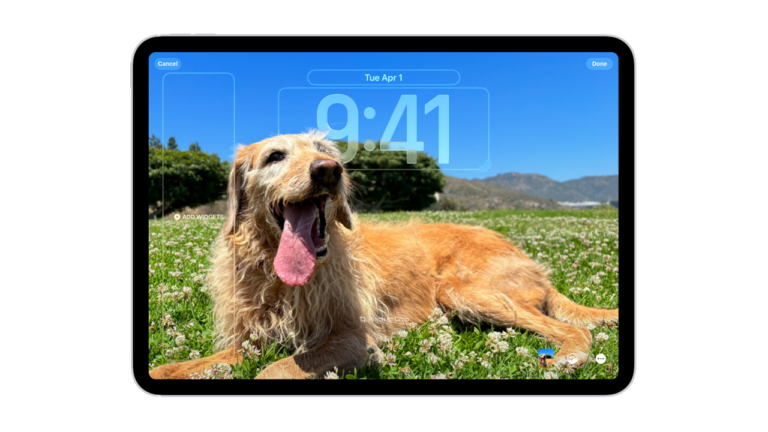
- Messaging Personalization: there’s more creative expression in the iPadOS 26 Messages app through background customization. Users can pick from preset themes or use a photo as a conversation backdrop.


Takeaways
I can’t say Liquid Glass panned out the way Apple wanted it to but it’s certainly a more expressive and customizable UI.
And that makes iPadOS 26 a little better for folks that might have grown weary of Apple’s flat aesthetics.
For that, I will put it in the Strength pile as I pull my takeaways together.
Strengths
- Liquid Glass has been polarizing. Aside from its initial legibility concerns, it is a fresh redesign that brings more expressiveness to Apple’s interface.
- The new Windowing and Multitasking setup is a welcome improvement that elevates app management and dives deeper into app commands via the Menu Bar. It was overdue, but it’s better late than never.
- There’s also the improved workflow—smarter Dock, robust Files app, new essential apps, and integrated background tasks.
- Communication is also more fun, engaging, and safe.
With these strengths, I can already say that the feature improvements on iPadOS 26 are worth the update.
Drawbacks
- No Apple Intelligence on the iPad. Reserved for Air and Pro models.
In 2025, basic AI services (at the least) should come built-in. And if it doesn’t (for some reason), it should be available via an OTA update.
AI is fast becoming part of everyday tasks and when it’s omitted entirely from a new device, it feels like lost value.
Let me know what you think in the comments. We will also cover some iPadOS 26 tips in an upcoming post, so stay tuned.
Happy New Year! — the time has probably passed but you haven’t heard it from me (so, just accept one more).